App to Find Wi-Fi Networks Near You
Announcements
Finding a reliable Wi-Fi network when you are away from home is an increasingly common need. There are specific applications that allow you to locate open networks, check the quality of the signal and even save your favorite accesses for future connections. In this article, we will explore how these tools work and what errors you should avoid when using them.

The search for a stable Wi-Fi connection may seem simple, but many people make mistakes that compromise the security, speed and even data consumption of your device. Understanding these pitfalls and knowing how to avoid them makes a real difference in your online experience.
Announcements
What is an App to Find Wi-Fi Networks
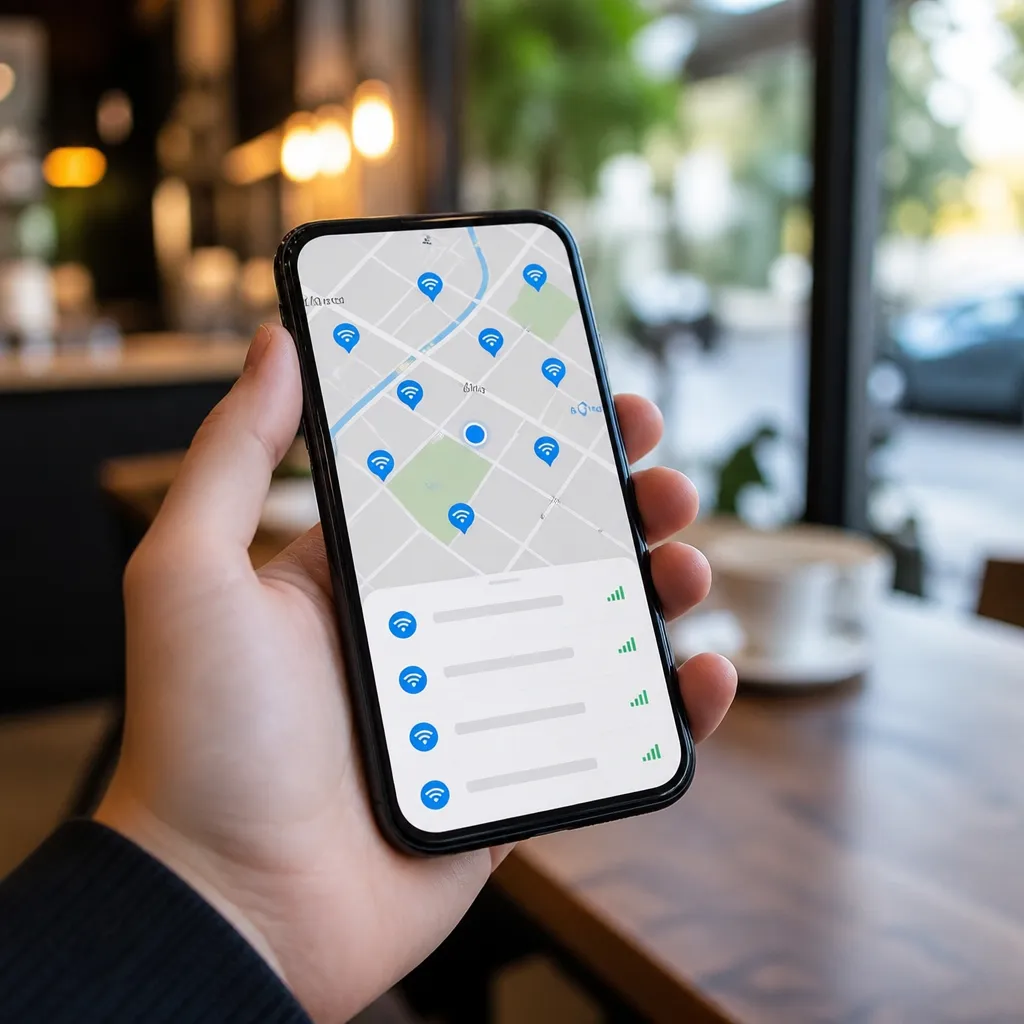
An application to find Wi-Fi networks is a mobile tool that scans the environment around you and lists all available networks, including information on signal strength, type of security and frequency. These apps act as a smart radar that shows which connections are currently reachable, saving you the time you would spend manually accessing your smartphone’s network settings.
Most of these apps offer complementary features like the ability to save favorite networks, view past connection history, test internet speed, and even alert when known networks are available.Some more advanced apps provide detailed analysis of channel congestion, interference, and even suggest which network to choose based on performance criteria.
Announcements
Common Errors when Using Wi-Fi Search Apps
One of the most frequent mistakes is blindly trusting open networks identified by the app. Many people connect to the first available network without questioning security, exposing sensitive data such as passwords, banking information and personal data. The application shows the network, but does not necessarily assess whether it is secure or a fake network created by cybercriminals.
Another common misconception is ignoring the security information the app provides. When you see the security rating (such as WPA, WPA2 or none), many people do not understand what it means and connect even then. Open networks without any encryption are extremely vulnerable, and you should never use sensitive data in them, even if the app indicates that the connection is “stable”.
Many users also make mistakes by not disabling automatic network search after finding one. Leaving the app running continuously consumes battery, data, and can log locations where you have been. This practice also increases the risk of your device automatically connecting to malicious networks that mimic legitimate network names.
Developers constantly patch security vulnerabilities, and using an outdated version means you are potentially exposed to known exploits.Checking for updates in the app store should be an automatic habit for any tool that accesses sensitive information about your connection.
How to Avoid Security Risks
Always check the network name (SSID) before connecting.Fake networks often copy the name of legitimate networks such as “Starbucks_WiFi” or “Airport_Free”. Criminals create these copies to intercept your data traffic.The app can show multiple networks with similar names; compare with the official network through the company’s website or ask an employee.
Prioritize networks protected with WPA3 or at least WPA2. These security technologies encrypt your connection, making it much harder for someone to intercept your data.When the app shows network options, ignore those that say “Open” or “None” if you need to transmit personal or financial information.
Set up a VPN network before connecting to public Wi-Fi. A virtual private network adds an extra layer of encryption, even if the Wi-Fi network is weak or insecure. This way, even if someone manages to intercept your connection, the data will be protected by the VPN.
Disable file sharing and network discovery when connected to public networks. These settings allow other devices on the same network to find yours. Most Wi-Fi search apps do not offer this protection automatically, so you need to adjust this in your device settings manually.
Choosing the Right App for Your Needs
Not all Wi-Fi search apps offer the same level of functionality and security. Some apps focus primarily on listing available networks, while others include speed tests, channel analysis, and advanced diagnostic tools.
Check reviews and ratings of other users, especially those who mention security and privacy. An app that accumulates complaints about unnecessary permissions or location tracking should be avoided. Carefully read what permissions the app asks your device for; if a Wi-Fi app asks for access to your contacts or camera, this is a red flag.
Prefer applications from well-known and trusted developers, especially those who have a history of regular updates.An app abandoned by developers is vulnerable and does not receive security fixes. Before installing, look for information about the company behind the app and see if it has a consolidated reputation.
Consider whether you really need a dedicated app. The native settings of your smartphone already show Wi-Fi networks available with basic security information. For most people, these integrated options are enough. A specialized app is only needed if you need detailed channel analysis, speed tests or continuous monitoring.
Useful Features and How to Use them Properly
Many apps offer the function of “save favorite networks”, which allows you to automatically connect to known networks when they are available. This function is convenient, but can also be dangerous if you save public networks.Criminals know this and can create networks with names of popular cafes or airports, trusting that their devices connect automatically.
To use this function safely, save only networks that you really know and control, such as Wi-Fi in your home or office. Avoid saving networks from public places, especially those without password protection. If the app asks if you want to connect automatically, respond with caution and always prefer manual connection to public networks.
Wi-Fi channel analysis is an advanced feature that shows you which channel each network is operating on and how much congestion there is. This is useful if you are at home and want to optimize your own Wi-Fi, but has limited utility when you are looking to connect to public networks. Understand what it is for before spending time analyzing this data.
The speed tests built into some apps are convenient, but remember that they only reflect speed at that specific time. Actual speed can vary greatly depending on how many other people are using the network.
Best Practices for Secure Connections
Even with a trusted app, your responsibility for security is paramount. Never access banks, personal emails, or any service that requires authentication on a public Wi-Fi network, especially if it is not password protected.
Keep two-factor authentication (2FA) enabled on important accounts. This adds a layer of protection; even if someone gets your password over an insecure network, they will not be able to access your account without the second factor of authentication. Most online services offer this option, and you should use it whenever possible.
Update your device and apps regularly.Security patches are released constantly, and being late means being vulnerable to known attacks. Set up automatic updates when possible, or take weekly time to do this manually.
Monitoring data usage when connecting on public Wi-Fi is important, especially if you have data limits. Some apps let you see how much data each app is consuming, helping you identify apps that consume more than they should. Disable automatic sync and app updates while on public networks.
Alternatives and Complements
In addition to specific apps, there are other ways to find reliable Wi-Fi.Mapping services like Google Maps indicate which establishments offer Wi-Fi, allowing you to locate public connections legitimately offered by businesses.
Personal hotspots offered by your mobile carrier are another alternative when you are away from home. Sharing data from your mobile plan through a hotspot is more secure than public Wi-Fi as you control the security of the connection.The cost in data is considerable, but for sensitive tasks, it is worth it.
International roaming can be expensive, but many carriers offer special plans for data when you travel.Search these options before you leave, as they can be more cost-effective than relying on unstable or potentially dangerous public Wi-Fi in unfamiliar countries.
Portable powerbanks ensure that your device has enough battery to not need to connect to unsecured Wi-Fi networks out of desperation. Keeping your phone charged reduces the urgency of connecting quickly, allowing you to choose networks more carefully.
Warning Signs when Using Wi-Fi Apps
If your app asks for permissions that don’t make sense for your role (such as access to contacts, camera, or call history), be wary. A Wi-Fi app has no legitimate reason to access this information. Reading permissions before installing saves you from future headaches.
Apps that show excessive or nosy ads often fund themselves by selling user data. If you are downloading a free app that offers a valuable function and it bombards you with advertising, ask how the developer is making money.
An app that crashes, takes too long, or consumes too much battery may indicate malicious code or poor development. Both scenarios are problematic. If the tool that should help you is hurting your device’s performance, it’s best to look for alternatives.
Networks that appear constantly in the app, but no one can access them (or that promote error messages), can be fake networks created as traps. Legitimate apps filter many of these, but poorly developed apps can list them. If you notice strange patterns, switch to a more reliable tool.
Contradictory information about a network (such as the app showing as open but then asking for a password) indicates potential detection problems or the network may be set up abnormally.When you encounter inconsistencies, simply move to another network; the risk is not worth it.
Device Settings to Improve Search
Make sure location is turned on if you want the app to work properly.Wi-Fi networks are partially identified by your geographic location, and without that data, the app may not show all available networks around you. Enable location only when using the app, and disable when finished to save battery.
Disable automatic connection to open networks in your device settings.Most modern smartphones offer this option, and it prevents your phone from automatically connecting to public networks without your approval.This reduces the risk of inadvertently connecting to a malicious network.
If your device has the option to “scan networks slowly” to save battery, consider activating it only if you are not actively looking for Wi-Fi. This function reduces the scan frequency, saving battery, but means that the app may take longer to detect changes in the available networks.
Regularly clear the history of known networks of your device, especially if you have traveled to various places. Old networks in the history take up memory space and can be incorrectly listed by the app.Most smartphones allow you to clear this history in Wi-Fi settings.
Continuing Education and Surveillance
Your biggest protector against Wi-Fi risks is knowledge. Keep up with news about new security threats and how big companies are responding. Continuous education ensures that you are not only using a tool, but understanding the security context in which it operates.
Discuss Wi-Fi best practices with friends and family. Many people do not understand why connecting to public Wi-Fi is risky, and your guidance can prevent them from falling into traps. Sharing knowledge amplifies the positive impact of your own safe practices.
Monitor your account activity periodically.If you notice unusual login attempts, changes to settings you have not made, or transactions you have not authorized, act immediately.Credit freeze, password change, and contact with the company are important steps if you suspect compromise.
Regularly review which apps are allowed to access locations, camera, microphone, and contacts. Apps you installed a long time ago may have more permissions that they actually need. Removing these unnecessary permissions reduces your overall attack surface.
Specific Contexts and Recommendations
Professionals working remotely should avoid public Wi-Fi for sensitive tasks altogether.If you work on sensitive projects, customer information or financial data, do not do so on public networks, not even with VPN.When possible, wait to be on a private network or use mobile data with your corporate plan.
Frequent travelers benefit from apps that map Wi-Fi networks globally, as they let you see which trusted networks are available in cities you’re visiting.This crowdsourced data helps you identify more secure networks, but always check the reputation of any network before relying on it with sensitive data.
Students using university networks should take advantage of the fact that these connections are typically secured and monitored. Universities often offer students VPN for use on public or personal networks as well.
Parents who buy Wi-Fi apps to teach their children about connectivity should keep a close eye on and explain the risks involved. A child lacks the maturity to understand security pitfalls, and letting them connect to any network they encounter can have serious consequences.
The Future of Wi-Fi Search
Wi-Fi technology is continually evolving, and new standards like Wi-Fi 6E offer greater speed and security. Future apps are likely to exploit these improvements by providing more fluid and secure connectivity experiences. Keeping an eye on these evolutions helps you make better decisions about which app to use.
Artificial intelligence is being integrated into connectivity apps to predict network behaviors and recommend the best connection in real time. These tools learn from your usage patterns and suggest networks based on history and preferences.However, always consider recommendations as tips, not absolute truths.
Privacy is becoming a higher priority in modern apps, with developers implementing protections like “differential privacy” that protect their data even as the app collects aggregate information.
Regulatory authorities are starting to impose stricter standards on how apps collect and use location data. This eventual regulatory change could result in more reliable and transparent apps.Following these regulations helps you understand which apps are truly private.
Summary of Immediate Practical Actions
Start today by reviewing which Wi-Fi search app you are using or intend to use. Check the permissions it requests and the ratings of other users. If you are not satisfied, look for better alternatives before relying on it with important data.
Disable automatic connection to open networks in your device settings. This is a simple step that dramatically reduces your risk of inadvertently connecting to a malicious network.It only takes a few minutes to make this change.
Install a reliable VPN and get used to turning it on every time you connect to public Wi-Fi. This practice adds a layer of protection that protects virtually all your data in transit, regardless of network security.
Share this information with people close to you who you know use public Wi-Fi regularly. Shared education strengthens the entire community against digital security risks.You can prevent someone from falling into a trap by simply explaining how fake networks work.